
Free
Edit a PDF without converting it to Word
To edit a PDF without converting it to Word, open it in FontiaPDF, click the line you want to fix and type. The change is made inside the PDF itself, in the original font, size and color, and everything else on the page (columns, photos, boxes, color bands) stays exactly where it was. There is no format round trip and nothing to install.
Converting to Word makes sense when you are going to rewrite the document. For changing a detail, a typo or a figure in a PDF that has already been laid out, it tends to create more work than it saves. Here is why the formatting breaks, and when converting really is the better option.
A real example
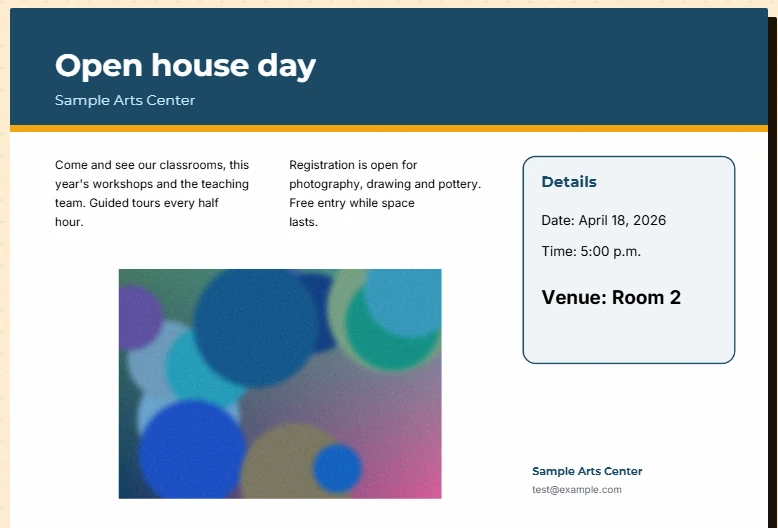
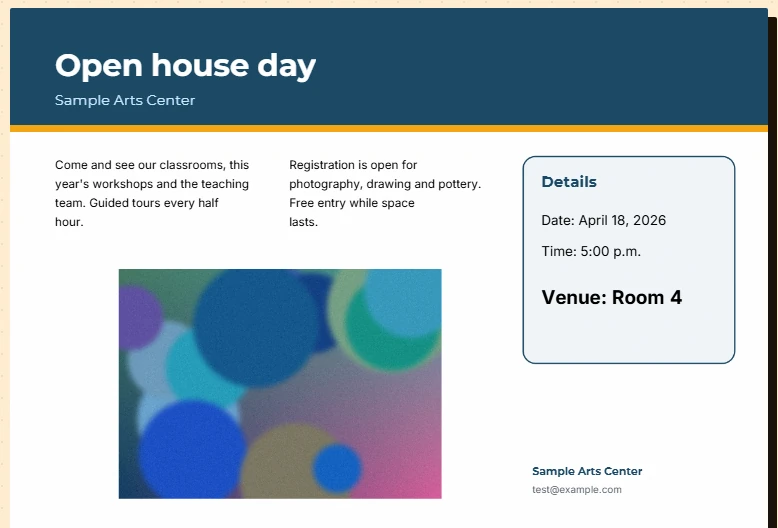
A flyer with a color band across the top, text set in two columns, a photo and a box with the event details. “Venue: Room 2” needs to become “Venue: Room 4”. In the editor, you click that line inside the box, change the number and download the PDF. When you open it again, the page is the same: the columns, the photo and the box haven’t moved, and the corrected line keeps its typeface.
Before
After
How to edit a PDF without Word in 3 steps
-
Open the PDF as it is
Upload it to the editor from your device (up to 50 MB). There is nothing to export or convert first: FontiaPDF reads the text, the embedded fonts and the position of every line straight from the file.
-
Change only what needs changing
Click the line and type. If the same detail appears on several pages, “Search” (Ctrl+F) and “Replace all” change it in one go. To add a missing line, double-click an empty spot on the page.
-
Download the PDF
Hit “Download PDF”. Each edited line is rewritten in place and the rest of the page is not laid out again: whatever you didn’t touch stays as it was.
Why a PDF loses its formatting in Word
A PDF doesn’t store paragraphs or tables the way a word processor understands them. It stores pieces of text, each with its font and its exact position on the page, alongside lines, rectangles and images placed by coordinates. To turn that into a Word document, a converter has to guess which pieces make up a paragraph, which ones are table cells and where each column begins.
That reconstruction is an approximation, and it tends to show most in the documents with the most design:
- Tables can arrive as loose text boxes, or with their columns out of line.
- A two-column layout can collapse into a single block, or turn into floating boxes that shift as you type.
- If the PDF’s typeface isn’t installed on your computer, Word may swap it for another one with different metrics, and the line breaks can move.
- Saving back to PDF gives you a rebuilt file, so you have to proofread all of it, not just the line you changed.
How editing in place works
FontiaPDF works the other way round: it doesn’t rebuild the document, it changes only what you touch. When you download, it removes the original text of each edited line from the page and writes the new text in the same position. If the font is embedded in the PDF and has every character you typed, that same font is reused; the editor checks this character by character.
Images, color backgrounds, rules and any text you didn’t edit are left alone. And text stays text: in the downloaded PDF it can still be selected, copied and searched.
When converting to Word is the better call
Editing in place is for corrections, not rewrites. FontiaPDF doesn’t reflow text: each line is edited on its own, and if a sentence gets longer, the line grows to the right without pushing the next ones down. Converting to Word, or better still going back to the file the PDF came from if you have it, is more practical when you need to:
- rewrite whole pages or long paragraphs;
- have the text flow again across lines and pages as you add or remove sentences;
- change the structure itself, such as adding rows to a table, moving from one column to two or reordering sections.
What’s preserved and what isn’t
Preserved
- The page layout: columns, tables, photos, backgrounds and boxes stay where they are, because the document is never converted or laid out again.
- The original font of each edited line, as long as it is embedded in the PDF and contains every character you typed.
- The size, color and position of the text, plus every page you didn’t touch.
Limits
- A longer sentence doesn’t make room for itself: if it runs into whatever sits next to it, shorten it or lower the font size.
- If the embedded font is a subset that lacks a character you typed (an accented letter, for example), that line falls back to the closest available font.
- A scanned PDF has no text to edit until you recognize it with the editor’s OCR, and whatever you change there is written in a standard font over a paper-colored patch.
- You can’t add rows to a table or change the structure of the page; for that, edit the original document.
Free or Premium
Free
20 exports a day, no sign-up and no watermark.
- Edit and add text in the original font
- Find and replace across the document
- Change font, size and color
- Whiteout to cover an area
Premium
Unlimited exports and extra features.
- Unlimited exports
- Reorder, duplicate and extract pages from the panel
- Password-protect the PDF
Frequently asked questions
Can I edit a PDF without having Word installed?
Yes. FontiaPDF runs in your browser and edits the PDF directly, without Word or any other program. All you need is an up-to-date browser, on a computer or on your phone.
Will I lose the formatting if I edit it this way?
Not in anything you leave alone: the PDF isn’t converted, so columns, tables and images stay the same. The lines you edit keep their font, size and color, within the limits above: fonts that lack a character, and text that doesn’t reflow.
Can I change a figure inside a table?
Yes. The text in a cell is edited like any other line: click it and change it. What you can’t do is add or remove rows and columns; the drawn table stays as it is.
Is my PDF uploaded anywhere?
While you edit, it never leaves your browser. When you download, it travels encrypted to our server so your changes can be applied; it is processed in memory and discarded as soon as that is done, with no copies kept.
Is it free?
Yes. Editing text, find and replace and changing fonts are all in the free plan, with 20 exports a day, no sign-up and no watermark.
More tools
Ready to give it a try?
Upload your PDF and edit it in your browser, with no sign-up and nothing to install.
Open the editor