
Free
PDF OCR: recognize the text in a scan, right in your browser
To OCR a scanned PDF with FontiaPDF, open it in the editor and press “Recognize text” on the notice that appears: the text is recognized on your own device and added to the PDF as an invisible layer on top of the image. From then on you can search, select, copy and edit its words, and the PDF you download is searchable in any reader. It’s free, needs no sign-up, and the file is never uploaded to a server.
A scan, or a photo of a document, is just a picture: there are no letters to search for or copy. OCR (optical character recognition) reads that picture and turns it into text, which is what you need to find a clause in a scanned contract, copy a paragraph from a letter or paste a figure into a spreadsheet.
A real example
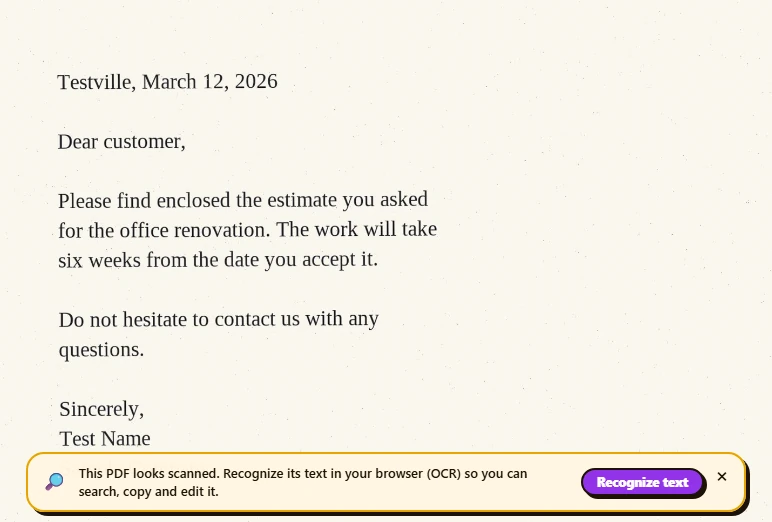
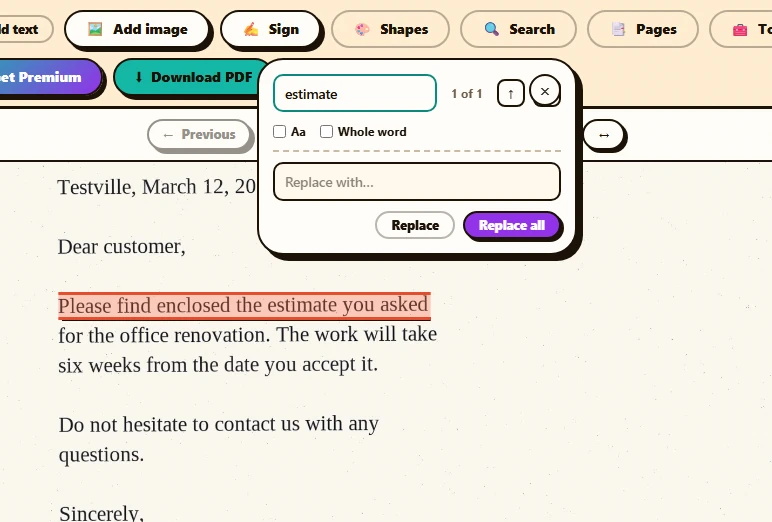
A scanned letter, saved as a single image with no text at all, is opened in the editor. As soon as it loads, the notice “This PDF looks scanned. Recognize its text in your browser (OCR) so you can search, copy and edit it.” appears with a “Recognize text” button. After choosing the language and recognizing the page, search finds a word from the letter and highlights the line it sits on, right on top of the scanned image, exactly where it appears.
Before
After
How to OCR a PDF in 3 steps
-
Open the scanned PDF
Upload it to the editor (up to 50 MB). If no page has text, you’ll see the “This PDF looks scanned” notice; if only some pages lack it, “Pages without text”. Press “Recognize text”. If you dismiss the notice, it won’t come back for that document: open the file again to get it back.
-
Choose language and pages
Set the “Document language” and, if the document mixes two, a “Second language (optional)”. By default it recognizes “All pages without text”; you can also pick the current page only or a “Range”. Pages that already have text are skipped.
-
Recognize, check and download
Press “Recognize text” and follow the progress page by page, with the time left and a “Stop” button. When it’s done, check the result with Ctrl+F and press “Download PDF” to save the searchable PDF.
What changes inside the PDF
Nothing you can see: the scanned image stays exactly the same, with its lettering, stamps and smudges. OCR places invisible text on top of it, word by word, in the same spot where each word appears in the image. That’s why a search match is highlighted right on the scan, and why copying gives you the recognized text.
If you later edit or delete a recognized word, the editor covers the original with a paper-colored patch and writes the new word on top in a standard font. The original image is still inside the PDF, and the patch shows up close up, because OCR doesn’t recreate the lettering of the scan. Our guide “Edit a scanned PDF” walks through an example.
What leaves your browser and what doesn’t
Recognition is done by tesseract.js, an OCR engine that runs inside the browser: neither the PDF nor the recognized text is sent to any server. The first time, your browser downloads the engine and the model for each language you choose from a content delivery network (a few MB; the dialog tells you how much before you start) and keeps them for next time. All our server receives is an anonymous note that OCR was used, without the file or its text.
Downloading the searchable PDF with no other changes doesn’t touch the server or use an export either. If you also edit the text, that download is processed on our server, in memory, discarded right after, and counts as one of the free plan’s 20 daily exports.
Common mistakes
- Looking for a visible change: after OCR the page looks exactly the same. Check it with Ctrl+F or by selecting a line.
- Editing before recognizing: if you have changes you haven’t downloaded, OCR discards them, and the dialog warns you. Recognize the text first, then edit.
- Leaving the wrong language selected: the engine recognizes words in the language you pick more reliably. If the document mixes two, add the second one.
- Trusting a faint, skewed or low-resolution scan: the worse the image, the more mistakes. If you can, scan it again, straight and with good contrast, and always check the recognized text.
What’s preserved and what isn’t
Preserved
- Pages that already had text: they are skipped, so in a mixed PDF only what’s missing gets filled in.
- Accents, cedillas, the Spanish ñ and the other letters of the seven languages in the dialog: English, Spanish, Portuguese, French, German, Italian and Catalan.
- File size barely changes: text is added, not new images.
- You can run OCR again later on other pages of the same PDF; pages already recognized are skipped.
Limits
- Latin scripts only: it doesn’t recognize Cyrillic, Greek, Arabic or Asian scripts, and results on handwriting aren’t reliable.
- Up to 50 pages at a time: for longer documents, press “Recognize text” again to continue.
- Not available for encrypted or password-protected PDFs.
- It doesn’t convert the scan to Word or a spreadsheet: the text stays inside the PDF, and you copy or edit it from there.
- It needs a recent browser with WebAssembly that lets the language model be saved; in some private windows it won’t start. If the resulting PDF would exceed 50 MB, it stays as it was.
Free or Premium
Free
20 exports a day, no sign-up and no watermark.
- OCR in your browser, with no quota
- Search, copy and edit the recognized text
- Download the searchable PDF
Premium
Unlimited exports and extra features.
- Unlimited exports of your edits
- Reorder, duplicate and extract pages from the panel
- Password-protect the PDF
Frequently asked questions
Why don’t I see the OCR option?
Because OCR is offered through a notice when you open a PDF with pages that have no text; there’s no separate button. If the PDF already has text, you don’t need it. If you dismissed the notice, open the file again; and if the PDF is encrypted, OCR isn’t available.
Is the OCR free?
Yes, with no lock and no quota: recognizing the text and downloading the searchable PDF don’t count as exports. A download only counts if you also edit the document.
Is my document uploaded to a server?
No. In the words of the dialog itself: “Your document never leaves your browser: the text is recognized on your device, without uploading the file to any server.”
How accurate is it?
It depends on the quality of the scan: the sharper, straighter and higher-contrast it is, the fewer mistakes. Always check the recognized text before relying on it, especially names, figures and dates.
How long does it take?
It depends on the number of pages and on your device: pages are recognized one at a time and, after the first one, the dialog estimates how long is left. You can press “Stop” at any moment and your document stays unchanged.
More tools
Ready to give it a try?
Upload your PDF and edit it in your browser, with no sign-up and nothing to install.
Open the editor