
Free
Convert JPG to PDF and combine your photos into one file
To convert JPG to PDF with FontiaPDF, open “Image to PDF”, drop in your photos or screenshots, put them in order and press “Create PDF”: each image becomes one page of the same document, in the order of the list. It takes JPG and PNG files, runs in your browser without sending the images to any server, and needs no sign-up and none of your daily exports.
It’s what you need to send several receipts as a single attachment, hand in homework photographed page by page, upload a photo of a document to a form that only accepts PDF, or keep the whiteboard photos from a meeting together and in order.
A real example
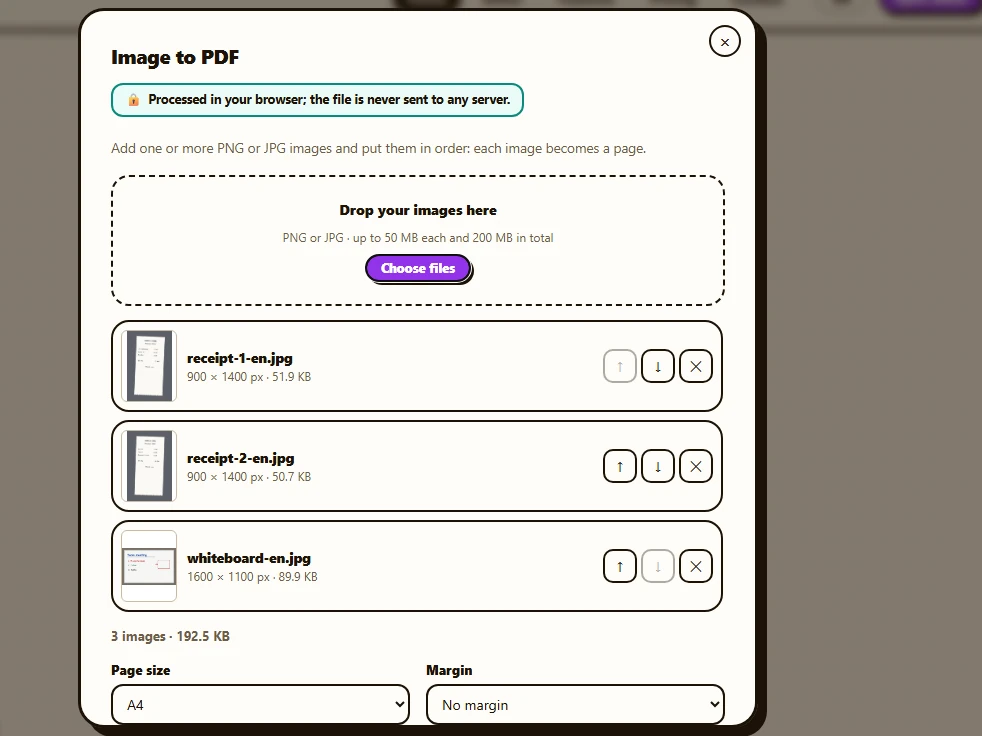
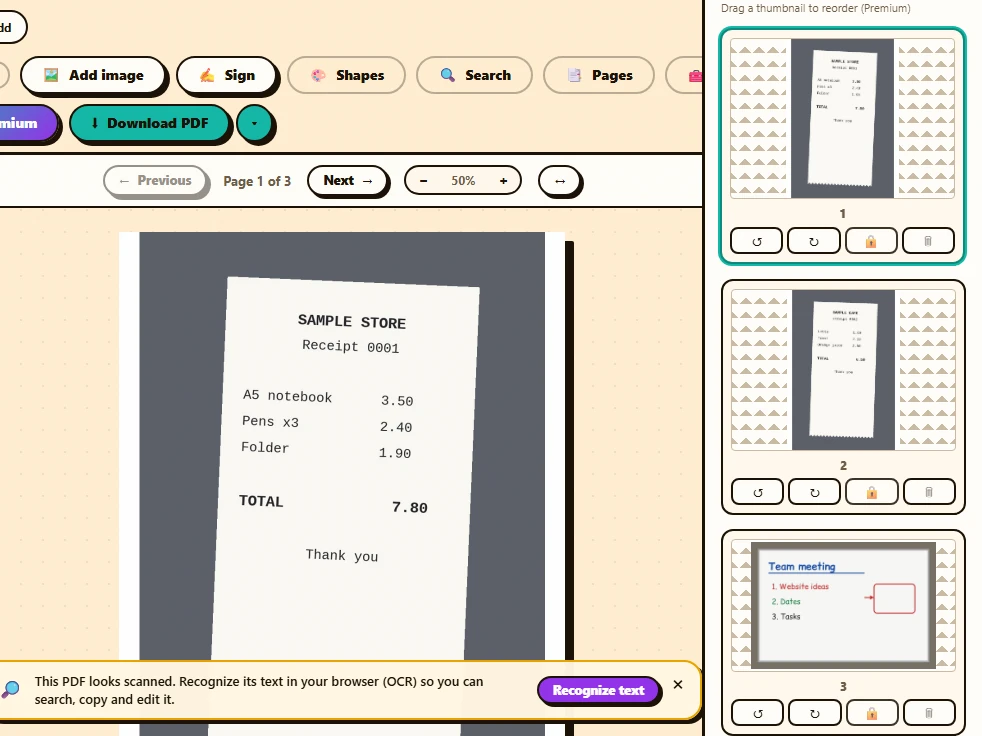
Three sample photos, two receipts and a whiteboard with notes from a meeting, are added to “Image to PDF” and show up in the list with a thumbnail, their size in pixels and their weight. A4 is picked as the page size: each photo is fitted whole and centered, and its page turns portrait or landscape to match the image. After “Create PDF” and then “Open in the editor”, the three-page document appears in the editor, ready to download, sign or annotate.
Before
After
How to turn JPG into PDF in 3 steps
-
Add your images
The “Open the tool” button on this page opens it directly; you’ll also find it under “Merge, split, convert and more tools” in the upload area and under “Tools” inside the editor. Drop your JPG or PNG files or press “Choose files”: up to 50 MB each and 200 MB in total.
-
Sort them and pick a size
Drag the rows to change the order (on a phone, use the ↑ and ↓ arrows) and remove any you don’t need with ✕. Then choose the “Page size” and the “Margin”.
-
Create the PDF
Press “Create PDF”. “Download” saves it to your device, and “Open in the editor” loads it so you can add text, a signature or another image before downloading.
Which page size should you pick?
- “Same as the image”, the default: each page is as big as the photo looks at 100% in a browser, with no borders. Good for screenshots and whenever each image should fill its page.
- “A4” or “Letter”: every page comes out the same size, ready to print or to submit. Each page turns portrait or landscape to match its image, which is scaled up or down to fit whole, centered and uncropped.
- “Margin”: “No margin”, “Small (10 mm)” or “Large (20 mm)”. It leaves some room around the photo and keeps a printer from clipping the edge of a receipt.
Phone photos: HEIC, WebP and rotation
The tool only accepts JPG and PNG. If you pick a HEIC photo, the format many phones save in, or a WebP image, you’ll see a message saying it isn’t a PNG or JPG image, and it won’t be added. Convert it to JPG or PNG first, or set your phone’s camera to save photos as JPG.
Photos your phone stores sideways, with a tag that says how to rotate them, come out upright in the PDF: the tool applies that rotation when it builds the page. That’s the only time a photo is re-compressed with any loss.
What leaves your browser and what doesn’t
Your images are read and assembled into the PDF inside your browser, with pdf-lib. They are never uploaded to a server, which matters when they are receipts, ID documents or personal photos. Creating the PDF doesn’t use any of the free plan’s exports, and if you open it in the editor and download it unchanged, it is saved as is, without going through the server. If you add text or a signature first, that download is processed on our server, in memory, discarded right after, and counts as one of your 20 daily exports.
What’s preserved and what isn’t
Preserved
- Every image whole and in proportion: nothing is cropped or stretched.
- The original quality of your JPG and PNG files, which go into the PDF with no loss.
- The order of the list: the first image becomes page 1, and the PDF is named after it.
Limits
- One image per page: you can’t lay out several photos on the same sheet.
- Photos aren’t cropped or retouched. If one ends up on its side, rotate its page in the editor’s “Pages” panel, which is free.
- The text in your photos can’t be searched or copied until you recognize it with OCR, which the editor offers when you open the PDF.
- File size isn’t reduced: big photos make a big PDF. “Compress” in the editor can slim it down with the “Maximum” level, but it sends the PDF to our server, which processes it in memory and discards it.
- Up to 50 MB per image and 200 MB in total; rows marked in red, such as a damaged file, have to be removed before you can continue.
Free or Premium
Free
20 exports a day, no sign-up and no watermark.
- JPG and PNG to PDF, with no daily limit
- Merge the result with other PDFs
- Add text, sign and compress in the editor
Premium
Unlimited exports and extra features.
- Unlimited exports of your edits
- Reorder, duplicate and extract pages from the panel
- Password-protect the PDF
Frequently asked questions
Can I combine several photos into one PDF?
Yes: add as many as you need, with no cap on the number. Each one takes a page, in the order of the list; the only limit is size, 50 MB per image and 200 MB in total.
Are my photos uploaded to a server?
No. The PDF is built in your browser and the images never leave your device; the dialog itself reminds you with the note “Processed in your browser; the file is never sent to any server.”
Can I add photos to a PDF I already have?
Yes, in two steps: create a PDF from the photos and download it, then open “Merge PDF” with both files in the order you want. Both tools are free and run in your browser.
What if I get the order wrong?
Before creating the PDF, drag the rows or use the arrows. If you already created it, just do it again, since it’s free, or open “Split PDF”, choose “A single PDF with the chosen pages” and type the order you want, for example “3, 1, 2”. In the editor’s page panel, reordering is a Premium feature.
More tools
Ready to give it a try?
Upload your PDF and edit it in your browser, with no sign-up and nothing to install.
Open the tool