
Free
Merge PDF files into one, in the order you choose
To merge PDF files with FontiaPDF, open “Merge PDF”, add your files and arrange them in the order you want. Press “Merge PDF” and you get a single document with every page, ready to download or to open in the editor for further changes. It’s free, with no sign-up and no watermark, and it doesn’t use any of the free plan’s 20 daily exports.
The merge runs in your browser, so your files are never sent to a server. Pages are copied as they are, text, fonts and images included: nothing is turned into an image, and the text in the combined PDF can still be selected and searched.
A real example
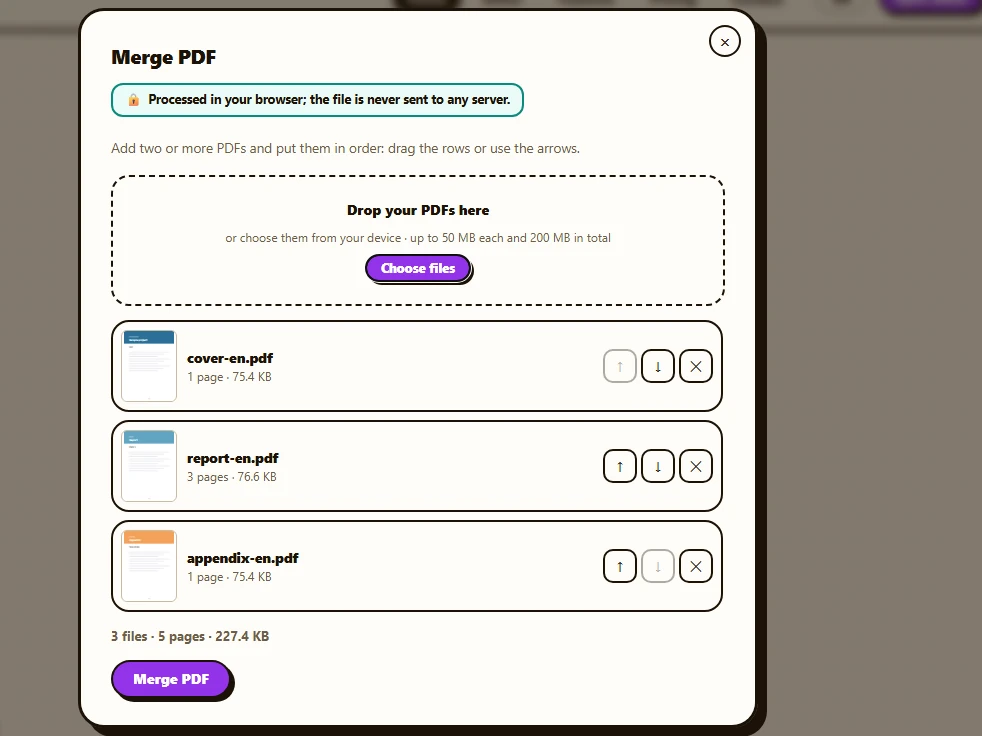
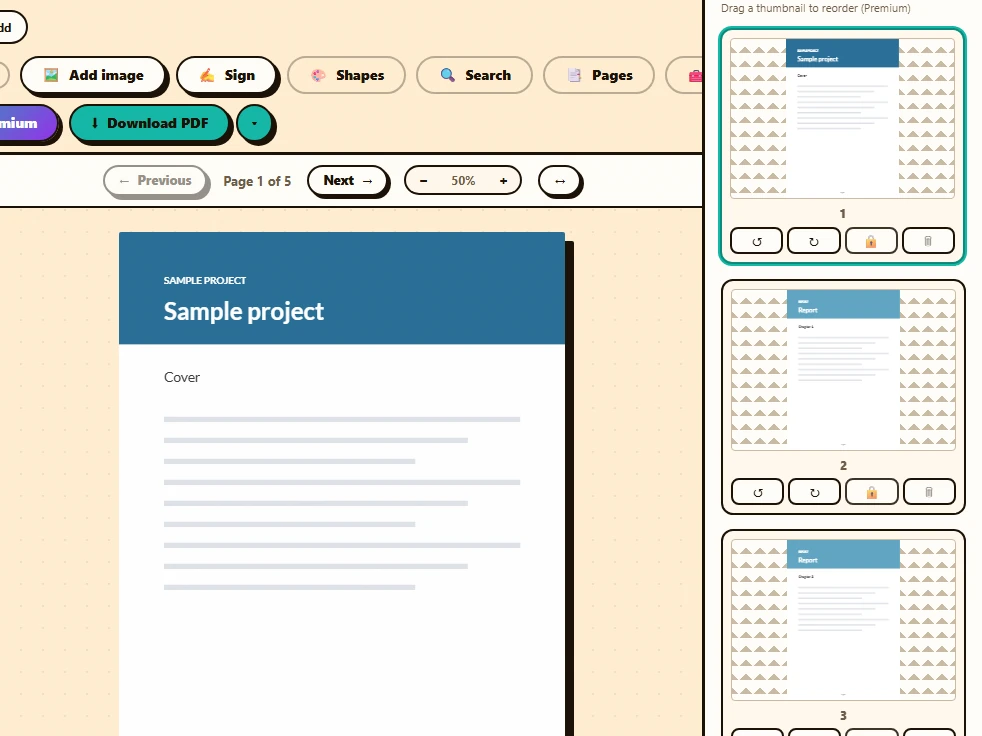
Three files from the same project: a 1-page cover, a 3-page report and a 1-page appendix. In the “Merge PDF” window each one shows a thumbnail of its first page, its page count and its size. They are set in order (cover, report, appendix), and merging them produces a single 5-page PDF, opened in the editor in case anything needs fixing before it goes out.
Before
After
How to merge PDF files in 3 steps
-
Open the tool
Press “Open the tool” on this page. Inside the editor it lives under “Tools” (on a phone, inside “⋯ More”), and before you open any PDF there is also a “Merge, split, convert and more tools” button on the upload screen.
-
Add and arrange your files
Drop the PDFs onto the window or press “Choose files”. Drag the rows or use the ↑ ↓ arrows to change the order, and ✕ to remove one. If a document is already open in the editor, “+ Add the open document” puts it on the list.
-
Merge and download
Press “Merge PDF”. When it’s done, “Download” saves the result under the first file’s name with “-merged” at the end, and “Open in the editor” loads it so you can review it or change its text.
What leaves your browser, and what doesn’t
Your PDFs stay on your device: they are read and combined in the memory of the browser tab. What does get downloaded, the first time you open the tool, are the libraries that do the work (pdf.js and pdf-lib, from their public CDNs) and the tool’s own code. Using it also sends an anonymous event with the tool’s name, never the file or its name, and not even that if your browser has Do Not Track or Global Privacy Control (GPC) turned on.
Because everything happens on your device, speed depends on it: a modest phone takes longer with heavy files, and if the browser runs out of memory, the tool tells you so you can try fewer or smaller files.
When it won’t work (and what to do)
- Encrypted or restricted PDFs: if a file asks for a password or limits editing, which is common with bank statements, its row turns red and you have to remove it to merge the rest. If the document is yours and you know the password, open it in the editor, enter the password and download it: that copy comes out without a password and can be merged. That step does go through our server, where it is processed in memory and discarded, and it counts as one export. If it only restricts editing and asks for no password, downloading it unchanged gives you back the same restricted file.
- Fillable forms: in the merged PDF the fields are still visible, but they can no longer be filled in. Complete the form in the editor first, download it and merge that copy.
- Only some pages from each file: this tool merges whole documents. To keep part of one, run it through “Split PDF” first with “A single PDF with the chosen pages”.
Common mistakes
- Adding the open document with edits you haven’t downloaded: it joins the list as the “Pages” panel shows it (order, deletions and rotations), but without your text, image, shape or form changes. Download the edited PDF first and merge that copy.
- Editing each part before merging: every download with changes uses one export. It’s more practical to merge first, open the result in the editor and fix everything in a single download.
- Not checking the order: before pressing “Merge PDF”, look at the summary under the list, with the total files, pages and size, and make sure the first file is the one that should open the document.
What’s preserved and what isn’t
Preserved
- Every page as it is: text stays text, and fonts, images and graphics are copied without being turned into images or recompressed.
- The size and orientation of each page, even if you mix A4, US Letter and landscape sheets.
- The order of the list: files go one after another, in full.
- Your original files don’t change: the result is a brand-new PDF.
Limits
- Fillable forms stop being fillable in the merged PDF.
- Bookmarks, the outline some PDF readers show in a sidebar, don’t carry over to the merged file.
- Encrypted or permission-restricted PDFs can’t be merged in the browser.
- Up to 50 MB per file and 200 MB in total. A result larger than 50 MB can be downloaded but not opened in the editor.
Free or Premium
Free
20 exports a day, no sign-up and no watermark.
- Merge PDFs without using exports
- Reorder files by dragging or with arrows
- Open the result in the editor
- Edit the text of the merged PDF
Premium
Unlimited exports and extra features.
- Unlimited exports when you edit the result
- Reorder and duplicate pages in the “Pages” panel
- Password-protect the PDF
Frequently asked questions
Does merging PDFs use up my free exports?
No. Merging happens in your browser and doesn’t count toward the 20 daily exports, whether you download the result or open it in the editor and download it unchanged. You only use one if you change the content in the editor (text, images, shapes or form fields) or rotate or delete pages, and then download the edited PDF.
How many PDFs can I merge at once?
There’s no cap on the number of files or pages; the limit is size: 50 MB per file and 200 MB in total, because everything happens in your browser’s memory. You need at least two.
Are my files uploaded to a server?
No. They are combined in your browser with pdf-lib and pdf.js, and the result is created on your device. The only downloads are those libraries, from their CDNs, the first time you open the tool.
Does it work on a phone?
Yes. The window takes up almost the whole screen and each row has ↑ ↓ arrows to reorder it and ✕ to remove it. With very large files, a phone with little memory may struggle: merge fewer files at a time.
More tools
Ready to give it a try?
Upload your PDF and edit it in your browser, with no sign-up and nothing to install.
Open the tool