
Free
Add a watermark to a PDF
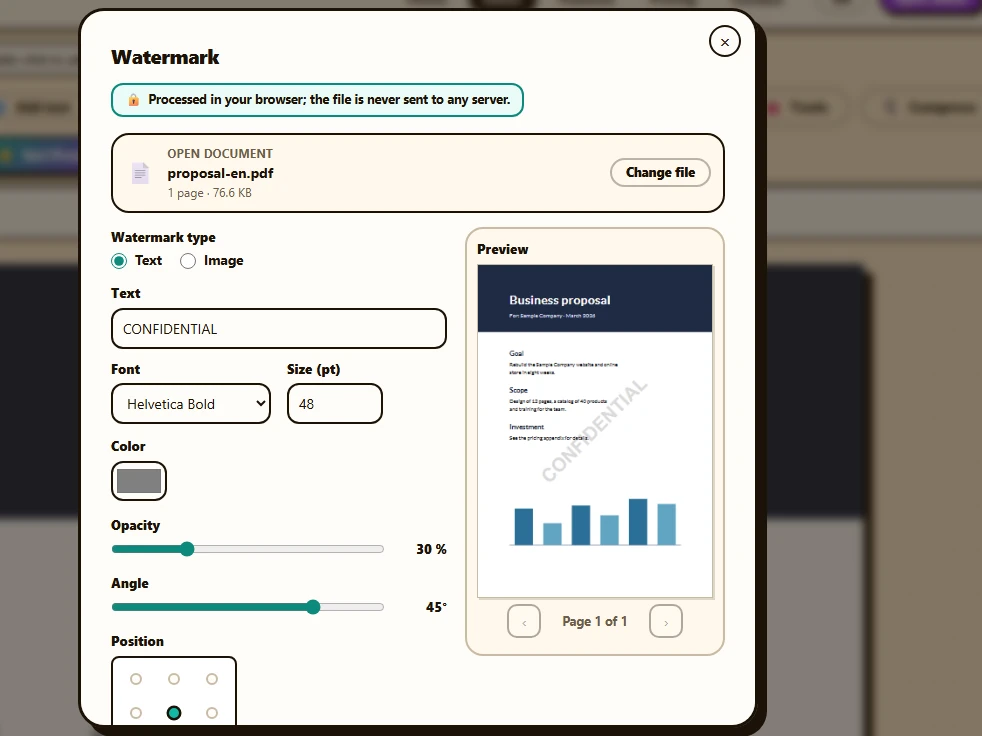
To add a watermark to a PDF with FontiaPDF, open “Watermark”, pick the document and type your text (it starts as “CONFIDENTIAL”) or upload an image such as your logo. Adjust the opacity, angle and position, then press “Add watermark”. The preview shows the page exactly as it will come out before anything is applied.
It all happens in your browser, without sending the file to any server, and it’s free: no sign-up, no FontiaPDF watermark of its own, and none of the free plan’s 20 daily exports used.
A real example
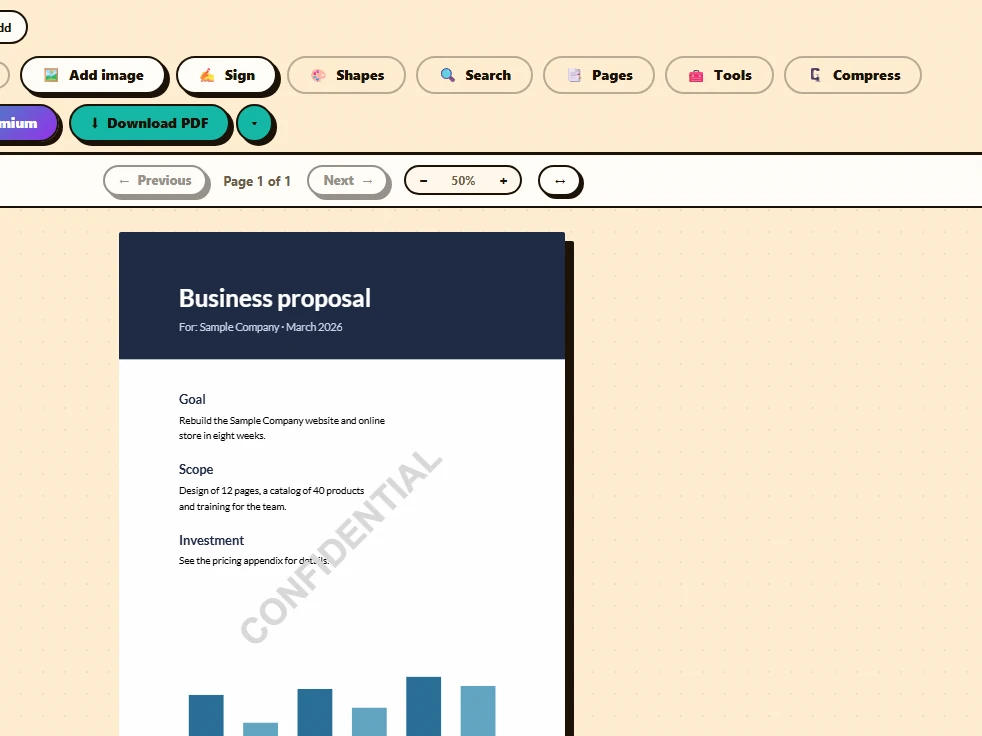
A one-page sales proposal about to be sent before the deal is closed. In the “Watermark” window the text stays as “CONFIDENTIAL” with the starting settings (Helvetica Bold, gray, 45° and centered), and the preview already shows it running diagonally across the page. With “Apply to the document”, the PDF open in the editor gets the watermark and is ready to download.
Before
After
How to watermark a PDF in 3 steps
-
Open the tool and pick the PDF
Press “Open the tool” and drop the file (up to 50 MB). If it’s already open in the editor, go through “Tools” instead and the watermark is applied to that document.
-
Design the watermark
Under “Watermark type”, choose “Text” or “Image”. For text, pick the font, size and color; for an image, a PNG or JPG and its width as a percentage of the page. Then set “Opacity”, “Angle” and “Position”, or turn on “Tile (repeat across the page)”.
-
Apply and download
Press “Add watermark”. With a file of your own, choose “Download” or “Open in the editor”; with the editor’s document, “Apply to the document” adds the watermark so you can keep working and download it later.
Typical uses
- “CONFIDENTIAL” or “DRAFT” across the page at a low opacity (it starts at 30%), so the content underneath stays readable.
- A named copy, such as “Copy for Sample Company”, tiled across the page when the same document goes to several people.
- Your logo in a corner, using “Image”: a PNG with a transparent background looks best, and since its width is a percentage of each page, it keeps its proportions even when the document mixes page sizes.
- A “Reviewed” or “Paid” stamp prepared as an image, in the top-right corner of every page of an invoice.
- Only some pages: under “Pages”, choose “Only these:” and type something like “1-3, 5”. If the page you’re looking at in the preview is outside the range, it tells you.
Which characters a text watermark accepts
Text watermarks use the standard PDF fonts: Helvetica, Times and Courier, in regular and bold. Every PDF reader has them built in, so they don’t need to be embedded and look the same in any app; the trade-off is that you can’t use the document’s own font or any other typeface.
Those fonts cover the basic Latin alphabet: accented letters, numbers and common symbols such as € or £. Emoji, other scripts (Greek, Cyrillic, Arabic, Chinese…) and some special symbols can’t be written, and the tool tells you which character is the problem. If you need one of them, make the watermark a PNG image and upload it with “Image”.
A watermark is not a password
The watermark is drawn into the content of each page, on top of what was already there, but it doesn’t encrypt the document or stop anyone from copying its text, and someone with a PDF editor could remove it. Use it to make a document’s status or recipient obvious, not to protect it. If it must not be opened without permission, Premium lets you password-protect the PDF when you download it.
And if you don’t like the result, your original file is still untouched on your device: open it again and try different settings.
What’s preserved and what isn’t
Preserved
- The content of every page: the watermark is drawn on top, semi-transparent if you like, and the original text can still be selected and searched.
- What you see is what you get: the preview is generated by the same process as the final PDF, and you can step through the pages with its arrows.
- On rotated pages, position and angle are applied as the page appears on screen.
- Form fields and bookmarks keep working, because the watermark is added to the same file; they’re only lost if you start from the editor’s document after deleting, rotating or moving pages in the “Pages” panel.
Limits
- Text of up to 120 characters, using only Latin letters, numbers and common symbols, in one of the six standard fonts.
- Images must be PNG or JPG.
- Tiling places at most 400 copies per page; if the watermark is very small, they’re spaced further apart.
- If you apply it to the editor’s document, any text, image, shape or form changes you haven’t downloaded are lost (you’re asked to confirm first). Add the watermark first and edit afterwards.
- Encrypted or permission-restricted PDFs can’t be watermarked in the browser.
Free or Premium
Free
20 exports a day, no sign-up and no watermark.
- Text or image watermarks
- Opacity, angle, position and tiling
- On every page or only some
- No exports used
Premium
Unlimited exports and extra features.
- Password-protect the PDF on download
- Unlimited exports if you keep editing
- Reorder, duplicate and extract pages from the panel
Frequently asked questions
Does adding a watermark use up my exports?
No. The watermark is added in your browser and doesn’t count toward the 20 daily exports, not even when you download the result. You only use one if you then change the content in the editor (text, images, shapes or form fields) or rotate or delete pages, and download the edited PDF.
Can I use my logo as a watermark?
Yes. Choose “Image”, upload a PNG or JPG and adjust its width, opacity and position. If it’s a phone photo that would show up sideways in the PDF, the tool straightens it.
Can I watermark a password-protected PDF?
Not in the browser. If the document is yours and you know the password, open it in the editor, enter the password and download it: that copy comes out without a password and can take a watermark. That download goes through our server, is processed in memory and counts as one export.
Is my PDF uploaded to a server?
No. The PDF and the watermark image are processed in your browser with pdf-lib and pdf.js. Using the tool only sends an anonymous usage event, without the file or its name.
More tools
Ready to give it a try?
Upload your PDF and edit it in your browser, with no sign-up and nothing to install.
Open the tool