
Free
Add page numbers to a PDF
To add page numbers to a PDF with FontiaPDF, open “Number pages”, choose the document, the position and the format, and press “Number pages”: every page gets its number, such as “Page 3 of 12”, in the spot you picked. The preview shows the exact result before you apply it.
It’s free, with no sign-up and no watermark, it doesn’t use the free plan’s exports, and it runs in your browser, so the PDF is never sent to a server. Use it for manuals, coursework, reports, legal bundles or any document that will be printed or referred to by page.
A real example
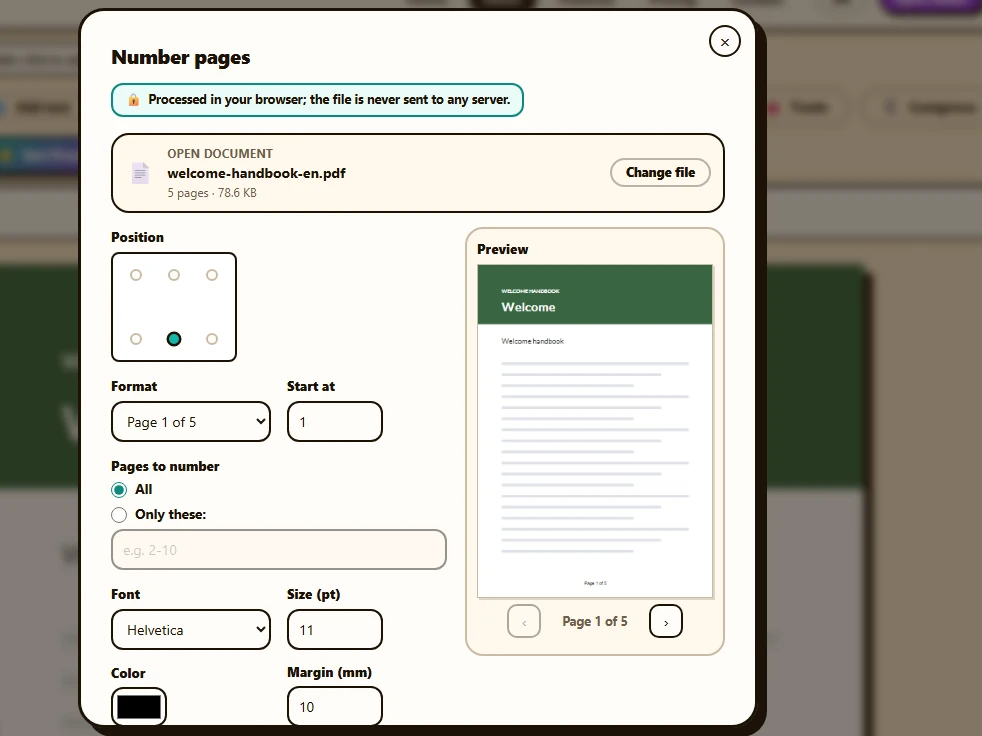
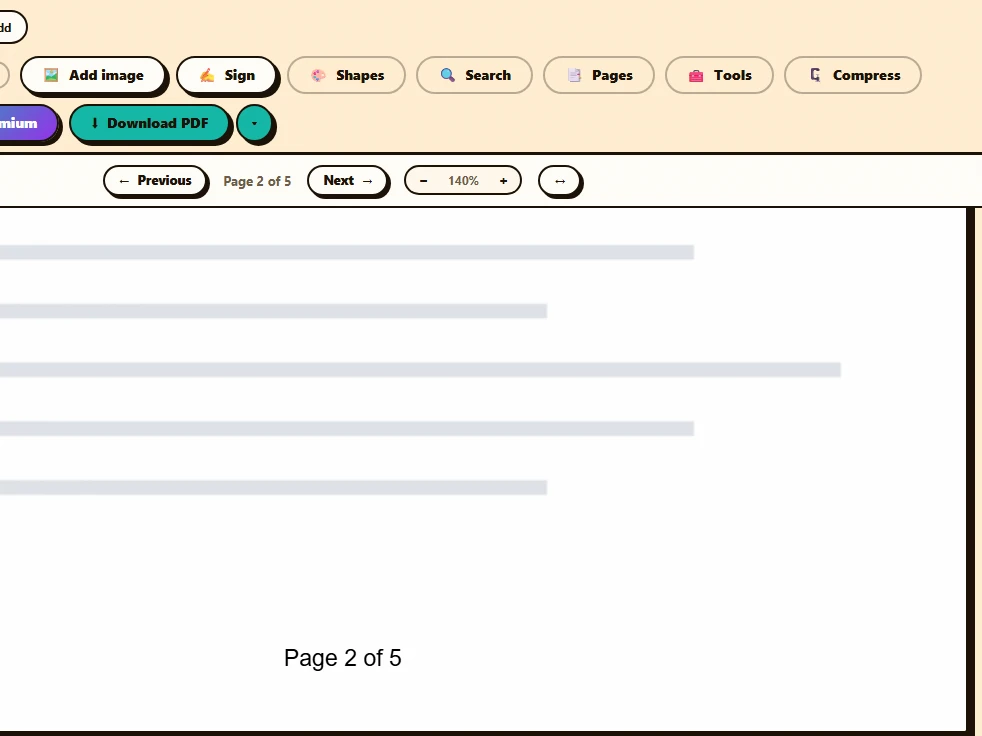
A 5-page employee onboarding handbook. In “Number pages” the starting settings stay as they are: the “Page 1 of 5” format, bottom center, 11 pt Helvetica and a 10 mm margin. The preview shows “Page 1 of 5” at the foot of the first page and, once applied, page 2 reads “Page 2 of 5” in the same spot.
Before
After
How to add page numbers to a PDF in 3 steps
-
Choose the document
Press “Open the tool” and drop the PDF (up to 50 MB), or start from “Tools” in the editor to number the document you have open.
-
Pick a position and format
Choose one of six positions (top or bottom; left, center or right) and a format: “1, 2, 3…”, “Page 1 of 5”, “1/5” or “Custom…”. If you like, change “Start at”, the font, size, color and “Margin (mm)”.
-
Number and download
Press “Number pages” and download the result, which ends in “-numbered.pdf”, or open it in the editor. If you numbered the editor’s document, “Apply to the document” keeps it numbered so you can carry on working.
Skip the cover page, and other cases
- No number on the cover: under “Pages to number”, choose “Only these:” and type “2-” (page 2 to the end). With “Start at” set to 1, the second page gets number 1 and the total only counts numbered pages: “Page 1 of 4” in a 5-page PDF. If the cover should count even without a number, set “Start at” to 2 and you get “Page 2 of 5” through “Page 5 of 5”.
- A document that continues another, like an appendix starting at page 31: type 31 in “Start at”.
- Different wording around the number: with “Custom…”, {n} is the page number and {N} the last number printed, for example “p. {n}” or “{n} / {N}”, up to 60 characters.
- Two styles in one document, say a front section and the main body: run the tool twice, each time with its own range.
Where the number goes
The number sits at the distance from the edge you set in “Margin (mm)”, 10 mm to start with, measured from the visible edge of the page to the text. On rotated pages, “Bottom center” means the bottom as the page appears, not as it’s stored.
It’s drawn on top of the content with no background. If the footer already has something printed, such as old page numbers or a legal notice, pick another position or increase the margin so they don’t overlap; the preview lets you step through the pages to check.
The starting size is 11 pt and the color is black. If the document has a dark footer or larger type, change them in “Size (pt)” and “Color”.
Before you number, check…
- Page order: number last, once the document is complete. If an appendix is missing, add it first with “Merge PDF”.
- Pending edits: if you number the editor’s document, the tool starts from the PDF without the text, image, shape or form changes you haven’t downloaded yet, and applying it discards them (you’re asked to confirm). Number first and edit afterwards, or download your changes first.
- Language: the “Page 1 of 5” format is written in the interface language; with the interface in Spanish you’d get “Página 1 de 5”. For any other wording, use “Custom…”.
- Characters: numbers use a standard PDF font, so a custom format only accepts Latin letters, numbers and common symbols, with no emoji.
What’s preserved and what isn’t
Preserved
- Everything on each page: the number is added on top and nothing else is touched.
- Pages you leave out of the range stay as they were; the preview says so with “it stays without a number”.
- Form fields and bookmarks keep working, because the numbers are added to the same file; they’re only lost if you start from the editor’s document after deleting, rotating or moving pages in the “Pages” panel.
- The number is real text, in Helvetica (or Times or Courier, also in bold): standard fonts every PDF reader has.
Limits
- No opacity or angle: the number is upright and solid, from 6 to 72 pt.
- Arabic numerals only: no Roman numerals (i, ii, iii) or letters (a, b, c).
- It doesn’t replace page numbers the document already has: a new set is added on top.
- Encrypted or permission-restricted PDFs can’t be numbered in the browser.
Free or Premium
Free
20 exports a day, no sign-up and no watermark.
- Six positions and four formats
- Start at any number you choose
- Number every page or a range
- No exports used
Premium
Unlimited exports and extra features.
- Reorder and duplicate pages before numbering
- Unlimited exports
- Password-protect the PDF
Frequently asked questions
How do I number a PDF without counting the cover page?
Under “Pages to number”, choose “Only these:” and type “2-”. With “Start at” set to 1, numbering begins on the second page; with “Start at” set to 2, the cover counts even though it has no number.
Does adding page numbers use up my exports?
No. It happens in your browser and doesn’t count toward the 20 daily exports, not even when you download the numbered PDF. You only use one if you then change the content in the editor or rotate or delete pages, and download the edited PDF.
Does it work with scanned PDFs?
Yes. The number is drawn on top of each page’s image, with no need to recognize the text first, and on rotated scans the position follows the page as it appears.
Is my PDF sent to a server?
No. It’s numbered in your browser with pdf-lib and pdf.js. If the PDF is password-protected, the tool can’t modify it: open it in the editor with its password and download it (that step does go through our server and counts as one export), then number that copy, which comes out without a password.
More tools
Ready to give it a try?
Upload your PDF and edit it in your browser, with no sign-up and nothing to install.
Open the tool