
Free
Convert a PDF to JPG or PNG images
To convert a PDF to JPG with FontiaPDF, open “PDF to image”, pick your file, choose JPG or PNG and a resolution of 72, 150 or 300 DPI, then press “Convert to image”: every page becomes an image. A single page downloads as a plain image file; several pages come bundled in a ZIP. The whole conversion runs in your browser, so the PDF is never sent to a server, and there is no sign-up, no daily limit and no watermark.
Use it to post a slide on social media or a website, drop a page into an app that won’t take PDFs, send a receipt as a photo in a chat, or save the cover of a report as a thumbnail. You can convert every page, just the one you are looking at in the editor, or a range such as “1-3, 5”.
A real example
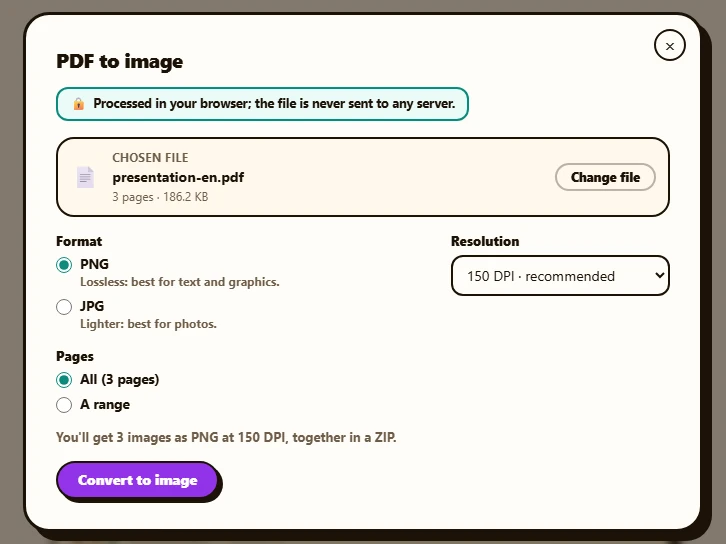
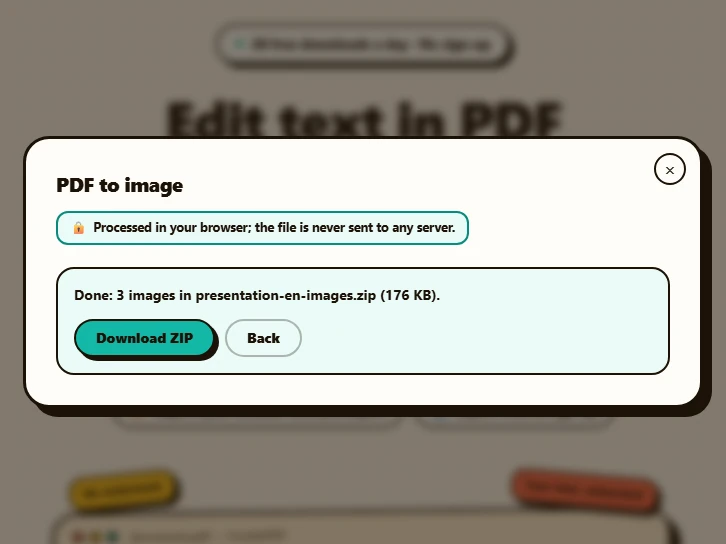
A three-page slide deck, picked from the device in “PDF to image”. The format stays on PNG, which keeps text and charts crisp, the resolution on “150 DPI · recommended” and the pages on all of them; before you start, the dialog tells you that you’ll get three PNG images at 150 DPI, together in a ZIP. After “Convert to image”, the result is ready behind the “Download ZIP” button, with each slide in its own file, named after the PDF plus its page number.
Before
After
How to convert a PDF to JPG in 3 steps
-
Open “PDF to image”
The “Open the tool” button on this page takes you straight to it. Inside the editor it lives under “Tools” (on a phone, under “⋯ More”). If a PDF is already open, the tool uses it; otherwise drop one up to 50 MB or press “Choose PDF”.
-
Pick format, resolution and pages
Choose PNG or JPG, select the resolution from the list and decide what to convert: “All”, “The current page” or “A range”. Below the options, the dialog tells you how many images you’ll get and whether they’ll come in a ZIP.
-
Convert and download
Press “Convert to image”. A single page downloads with “Download”; several pages, with “Download ZIP”. Changed your mind? “Cancel” stops the conversion right away.
JPG or PNG, and which DPI?
PNG is lossless: letters, tables and thin lines stay sharp, at the cost of bigger files. JPG uses high-quality compression and takes up far less space, which makes it the practical choice for pages full of photos or for sharing in a chat. If in doubt, start with PNG at 150 DPI. For a US Letter page, each resolution gives you roughly:
- “72 DPI · screen”: about 612 × 792 pixels. Enough for a preview or a thumbnail.
- “150 DPI · recommended”: about 1275 × 1650 pixels. Easy to read on screen and fine for websites, slides and social posts.
- “300 DPI · print”: about 2550 × 3300 pixels. For printing the image or zooming in on details; each file is several times heavier.
What leaves your browser and what doesn’t
Pages are rendered and converted in your browser with pdf.js, the same library the editor uses to display your document. The PDF is never uploaded, and converting doesn’t use up any of the free plan’s 20 daily exports. The first time, your browser downloads the tool’s code and its libraries; all our server receives is an anonymous note that the tool was used, without the file or anything in it.
Common mistakes
- Converting before downloading your edits: if you changed text, added a signature or filled in a form and haven’t downloaded the PDF yet, the images won’t include those changes (the tool warns you). Download the edited PDF first, then pick that file with “Change file”.
- Choosing 300 DPI for a long document: the ZIP grows fast, and on a phone the browser may run out of memory. For on-screen use, 150 DPI is plenty.
- Expecting editable text: an image has no text to copy. If what you need is the text of a scan, use the editor’s OCR instead of converting.
What’s preserved and what isn’t
Preserved
- Everything you see on the page: text, photos, charts and colors, on a white background wherever the PDF has none.
- The order, rotations and deletions you made in the “Pages” panel, with no need to download the PDF first.
- The resolution you chose, written into the image data, so layout and printing software place it at its real size.
- Password-protected PDFs: the tool asks for the password and converts the pages anyway.
Limits
- The image is a picture of the page: its text can no longer be selected or searched.
- PNG and JPG only, at 72, 150 or 300 DPI: no WebP, no TIFF and no custom resolution.
- Huge pages, such as a floor plan, are scaled down so your browser doesn’t run out of memory (each image is capped at about 36 megapixels and 16,384 pixels per side); when that happens, the result tells you.
- Up to 50 MB per PDF, on any plan.
Free or Premium
Free
20 exports a day, no sign-up and no watermark.
- PDF to JPG or PNG, with no daily limit
- Merge, split, number pages and watermark in your browser
- Edit text, sign and fill in forms
Premium
Unlimited exports and extra features.
- Unlimited exports of your edits
- Reorder, duplicate and extract pages from the panel
- Password-protect the PDF
Frequently asked questions
How do I convert just one page of a PDF?
With the PDF open in the editor, choose “The current page”; with a file of your own, pick “A range” and type its number, for example “4”. A single page downloads straight away as an image, with no ZIP.
Is my PDF uploaded to a server to convert it?
No. The conversion happens in your browser and the file never leaves your device; the dialog itself reminds you with the note “Processed in your browser; the file is never sent to any server.”
Is there a page limit or a daily limit?
There’s no quota: converting doesn’t count as an export, and there’s no page cap. The limits are the PDF’s size, 50 MB, and your device’s memory; if the browser struggles, try fewer pages or a lower resolution.
Does Premium give better image quality?
No. “PDF to image” is the same on both plans, with the same formats and resolutions. Premium adds unlimited exports of your edits, reordering, duplicating and extracting pages, and password protection.
More tools
Ready to give it a try?
Upload your PDF and edit it in your browser, with no sign-up and nothing to install.
Open the tool