
Free
Edit a scanned PDF
To edit a scanned PDF with FontiaPDF, open it and press “Recognize text” in the notice that appears. OCR reads the pages right in your browser, and from then on you can click the recognized text and correct it. The original text in the scan is covered with a paper-colored patch, and the new text is written on top in a standard font.
It helps to know up front what that means. A scan is a photo of the page, not text, and FontiaPDF doesn’t redraw the photo in the same lettering: it corrects on top of it. For a single detail, such as a quantity, a date or a name, that is usually enough; for redoing a scanned document, it isn’t.
A real example
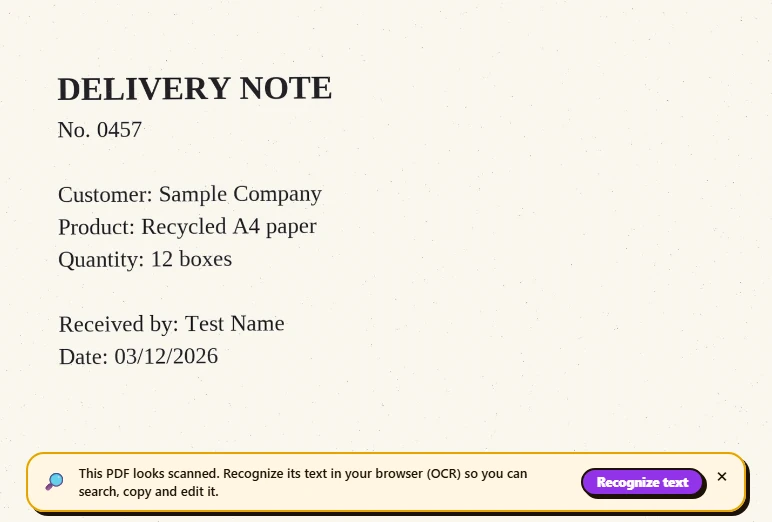
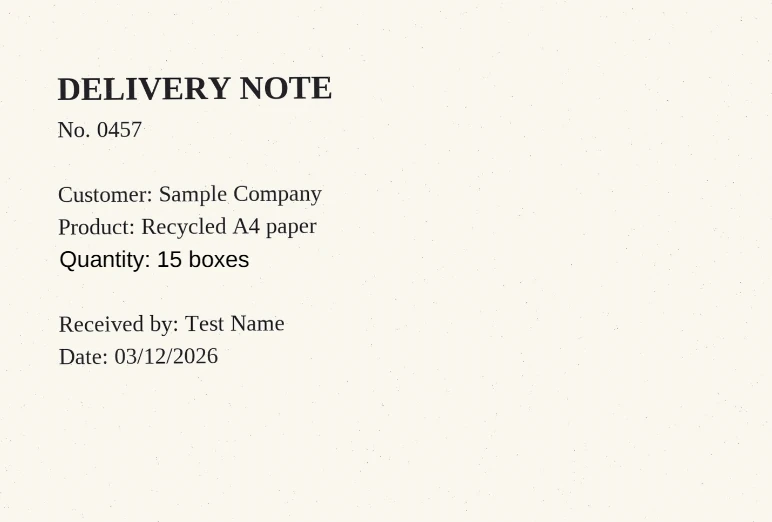
A scanned delivery note says “Quantity: 12 boxes” when it should be 15. When it opens, the notice says the PDF looks scanned; after recognizing the text, you click that line, change the figure and download. In the result, the correction is written in a standard font over a flat, paper-colored patch. You can tell it is a patch: the lettering isn’t the scan’s and the box lacks the paper’s grain. But the quantity reads clearly and the rest of the note is unchanged.
Before
After
How to edit a scanned PDF in 3 steps
-
Recognize the text
When you open a PDF with no text, the editor shows “This PDF looks scanned…”. Press “Recognize text”, choose the document’s language (plus a second one if you need it) and the pages. The first time, the OCR engine and the language model are downloaded and stay saved in your browser.
-
Fix the detail
Once it finishes, click the recognized text and type it correctly. If OCR misread an area or didn’t pick it up at all, open “Shapes”, cover it with “Whiteout” and add new text on top by double-clicking the page.
-
Check and download
Look closely at every correction and hit “Download PDF”. The file carries the original photo, your patches, the new text and the recognized text, which can be searched and copied.
What FontiaPDF does with a scan
- It recognizes the text on your device: during OCR the document never leaves your browser. It supports Spanish, English, Portuguese, French, German, Italian and Catalan, up to 50 pages at a time.
- It adds an invisible text layer over the photo, word by word, so from then on you can search with Ctrl+F, select and copy.
- When you edit or delete recognized text, it covers the original with a patch in the paper’s color, sampled from the page itself, and writes the new text on top.
- With “Whiteout” you can cover any other area, such as a stamp, a smudge or a figure OCR didn’t read, and type over it.
What it doesn’t do (and why it shows)
It doesn’t rewrite the image. The scanned photo stays inside the PDF exactly as it was; what you see corrected is a flat patch with text on top. That is why the new lettering doesn’t imitate the scan’s, whether it came from an old printer, a typewriter or someone’s handwriting, and why on paper with shadows, grain or stains the patch stands out.
It doesn’t remove what it covers either: under the patch, the original image still shows the old detail, and anyone who extracts the photo could see it. Don’t use it to hide confidential information.
And accuracy depends on the scan. With low resolution, skewed text, stains or handwriting, OCR can misread words or miss them entirely, and then there is no text to edit in that area.
Fixing a scan versus just making it searchable
If all you want is to search, select or copy the text of a scan, you don’t need to edit anything: recognize the text and download the PDF. With no other changes, that download happens in your browser, with no server involved and no export used. The “OCR: make a PDF searchable” page covers that in detail.
This guide is about something else: changing what people see on the page. And if you still have the file the paper was printed from, editing that original and exporting it again is the cleanest route for big changes.
What’s preserved and what isn’t
Preserved
- The image of every page, exactly as it was: only the text layer, your patches and the new text are added on top.
- Whatever you don’t correct stays the same, and the recognized text remains searchable and copyable in the downloaded PDF.
- If you only recognize the text and download with no other changes, the PDF is built in your browser without uploading it; with corrections, the download goes through our server and counts as one export.
Limits
- The new lettering is a standard font, not the scan’s, and a flat patch stands out on paper with grain or shadows.
- The old detail is still in the image, under the patch, so this is no way to hide data.
- Recognize the text before you edit anything: if you had changes you hadn’t downloaded, OCR discards them.
- On pages the file stores as rotated, the automatic patch isn’t added, so cover the area with “Whiteout”. OCR isn’t available for encrypted PDFs or for non-Latin scripts.
Free or Premium
Free
20 exports a day, no sign-up and no watermark.
- Recognize text (OCR) in your browser
- Edit and delete recognized text
- Whiteout with new text on top
- Search and copy inside the scan
Premium
Unlimited exports and extra features.
- Unlimited exports
- Reorder, duplicate and extract pages from the panel
- Password-protect the PDF
Frequently asked questions
Can I change the text in a scan and keep the same lettering?
No. A scan is an image and FontiaPDF doesn’t redraw it: the corrected text is written in a standard font over a paper-colored patch. If you need the exact lettering, edit the original document and export it again.
Does OCR upload my document?
No. Recognition runs on your device; the first time, only the engine and the language model are downloaded. The PDF leaves your browser when you download it with changes: it is then processed in memory on our server and discarded as soon as that is done.
Why don’t I see the OCR notice?
The editor only offers it when it finds pages without text. If your scanner already recognized the text while scanning, the PDF carries its own text layer and you can search it straight away. If you closed the notice, open the document again.
Is editing a scan free?
Yes. OCR, editing the recognized text and whiteout are all free; only each download with changes counts, with 20 a day on the free plan, no sign-up and no watermark.
More tools
Ready to give it a try?
Upload your PDF and edit it in your browser, with no sign-up and nothing to install.
Open the editor