
Free
Split a PDF into separate files
To split a PDF with FontiaPDF, open “Split PDF”, choose the file and type the page ranges you want, such as “1-3, 5, 8-10”: you get one PDF per range, delivered together in a ZIP when there is more than one. You can also cut it every N pages or save each page as its own file. It’s free, with no sign-up and no watermark, and it doesn’t use the free plan’s exports.
If you only need a few pages, the same window builds a single PDF with just the ones you pick, which is how you extract pages from a PDF for free. Everything runs in your browser and the document is never sent to a server; the first time, only the libraries that do the work (pdf.js, pdf-lib and JSZip) are downloaded from their public CDNs.
A real example
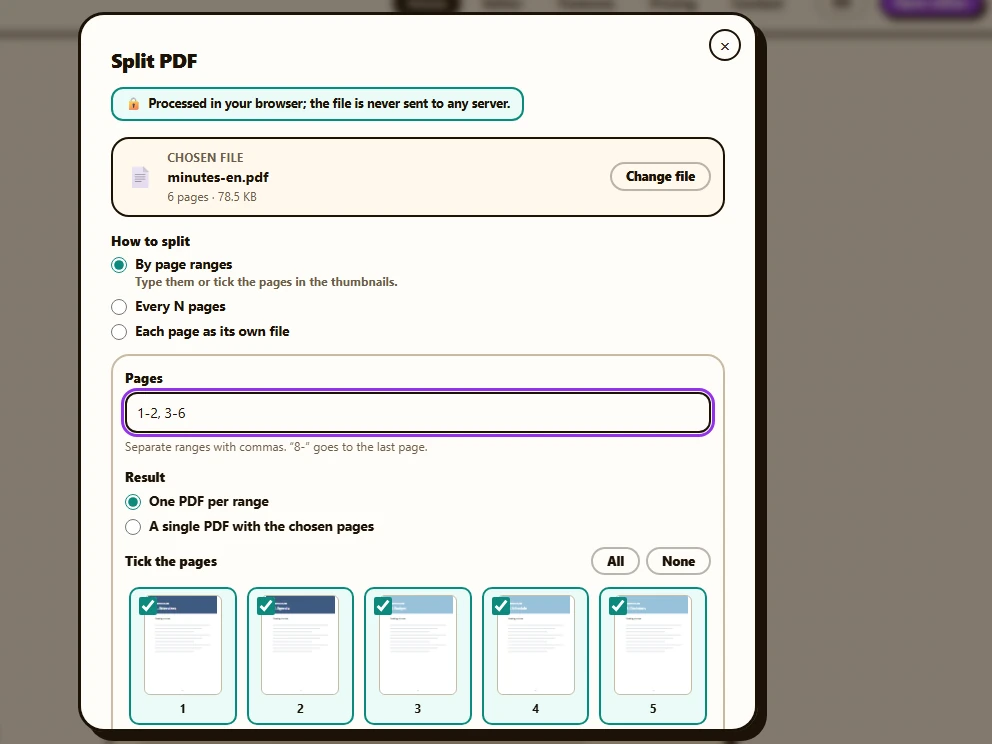
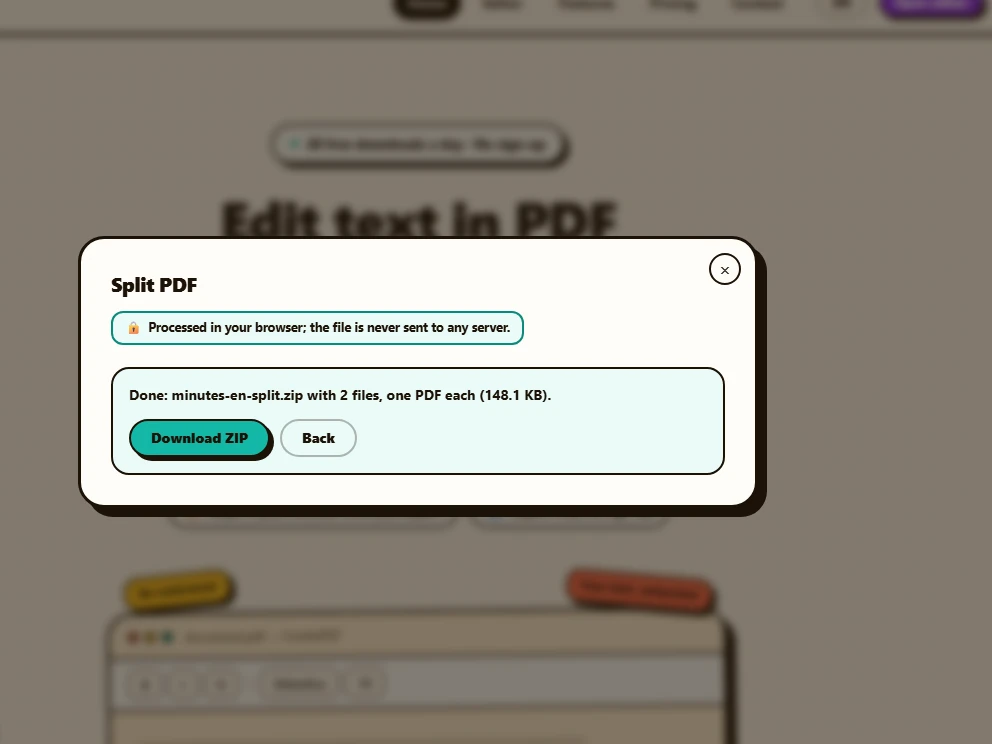
A 6-page set of meeting minutes that has to be split in two: pages 1 and 2, with the agenda and the attendance list, and pages 3 to 6, with the discussion. In “Split PDF”, with “By page ranges” selected, the ranges “1-2, 3-6” are typed in and all six thumbnails get ticked. Since the result is two files, they come packed in a ZIP, ready for “Download ZIP”.
Before
After
How to split a PDF in 3 steps
-
Choose the PDF
Press “Open the tool” and drop the file or press “Choose PDF” (up to 50 MB). If you start from “Tools” in the editor, the tool uses the open document, with the pages you deleted or rotated in the “Pages” panel, in their current order.
-
Pick how to split
Under “How to split”, choose “By page ranges”, “Every N pages” or “Each page as its own file”. For ranges, type them or tick the thumbnails: both stay in sync, and “All” and “None” tick or clear everything at once.
-
Split and download
Press “Split PDF”. If you get a single file, download it or open it in the editor; if you get several, they come together via “Download ZIP”.
How to write page ranges
- “1-3, 5, 8-10” gives three parts: pages 1 to 3, page 5 on its own and pages 8 to 10. Commas and semicolons both work as separators.
- “8-” runs to the last page and “-3” starts at the first, which is handy when you don’t remember how many pages the document has.
- With “One PDF per range”, the default, every range becomes its own file. With “A single PDF with the chosen pages”, they all go into one PDF in the order you typed them, without repeating any page.
- If a range goes past the end of the document, the tool tells you how many pages it has; and before you press the button, a note tells you how many files you’ll get.
Extract pages into a new PDF, for free
To keep only a few pages, say pages 2 and 7 of a contract, type “2, 7” and choose “A single PDF with the chosen pages”: you get a new PDF with those two pages, and no export is used. Because it follows the order you type, it also lets you move a page to the front: “5, 1-4” gives page 5 followed by pages 1 to 4.
The editor’s “Pages” panel also has an “Extract selection” button. That one is a Premium feature and runs on our server; in exchange, it accepts password-protected PDFs, which “Split PDF” can’t open in the browser.
When it won’t work (and what to do)
- Encrypted or restricted PDFs: if the file asks for a password or limits editing, you’ll see a message saying it “is encrypted or password-protected”. If it’s yours and you know the password, open it in the editor, enter the password and download it: that copy comes out without a password and can be split. That step goes through our server and counts as one export. If it only restricts editing and asks for no password, downloading it unchanged gives you back the same restricted file.
- Splitting by file size, such as 5 MB chunks, or by chapter automatically: this tool splits by pages. If the problem is size, try “Compress” in the editor.
- Splitting with edits you haven’t downloaded: from the editor, the tool starts from the PDF without your text, image, shape or form changes, and warns you about it. Download the edited PDF first and split that copy.
What’s preserved and what isn’t
Preserved
- Pages are copied untouched: selectable text, fonts, images and page size match the original.
- Each page’s orientation, including any rotation you applied in the “Pages” panel when you start from the editor’s document.
- Your original file doesn’t change. Each part is named after it, with the pages at the end, like “minutes-pages-1-2.pdf”, and the ZIP ends in “-split”.
- A single output file can be opened in the editor so you can keep working on it.
Limits
- Encrypted or permission-restricted PDFs can’t be split in the browser.
- When you get several files, they only download as a ZIP; to open one in the editor, split that range on its own.
- Bookmarks don’t carry over to the new files, and the fields of a fillable form remain visible but can no longer be filled in.
- Up to 50 MB per PDF.
Free or Premium
Free
20 exports a day, no sign-up and no watermark.
- Split by ranges, every N pages or page by page
- A single PDF with the chosen pages
- ZIP download
- No exports used
Premium
Unlimited exports and extra features.
- “Extract selection” from the “Pages” panel
- Reorder and duplicate pages
- Unlimited exports
Frequently asked questions
How do I save each page as a separate PDF?
Choose “Each page as its own file” and press “Split PDF”. You get a ZIP with one PDF per page, named like “document-page-1.pdf”.
Can I split a PDF every few pages?
Yes, with “Every N pages”: type how many pages each file should have (2 by default). The last file gets whatever is left; for example, a 7-page PDF split every 3 pages gives files of 3, 3 and 1 page.
Does splitting a PDF use up my exports?
No. It runs in your browser and doesn’t count toward the free plan’s 20 daily exports. You would only use one if you open the result in the editor, change its content or rotate or delete pages, and download the edited PDF.
Is my PDF uploaded anywhere?
No. The split files and the ZIP are created in your browser; the file isn’t sent anywhere. Only the editor’s “Extract selection” button, which is a separate feature, goes through our server.
More tools
Ready to give it a try?
Upload your PDF and edit it in your browser, with no sign-up and nothing to install.
Open the tool